Science & techIssue OLED touchscreen MacBook Pro: release date, price and what's new?
Q. What is OLED burn-in, what causes it, and how do you prevent it?
Apple’s new MacBook Pro, announced on 28 October, is the first Mac with a touchscreen, and its PROLED XDR display uses tandem OLED (organic light-emitting diode) technology. A Mac shows a menu bar and a Dock in the same places all day, so for many people the word OLED raises one worry: burn-in. So what exactly is OLED burn-in, what causes it, and how do you prevent it?
The short answer: OLED burn-in is a faint ghost that stays on screen because the same image sat in one place so long that those pixels wore out faster than their neighbors. Unlike temporary image retention, it does not fade. That is why Apple, Samsung and LG all build in protections and warn about leaving bright, static images up for hours.

What is the difference between burn-in and image retention?
On an OLED screen, where every pixel makes its own light, a leftover trace of an earlier image comes in two kinds.
Temporary image retention is a faint ghost that, as LG puts it, usually fades after a moment or two; Apple says it disappears after a few minutes of normal use. On OLEDs, the review site RTINGS notes, heat left in the pixels can cause it.
Burn-in lasts. LG calls it image retention that persists much longer and usually shows even over other content, and RTINGS describes it as permanent damage from pixels wearing out unevenly.
| Image retention | Burn-in | |
|---|---|---|
| How long it lasts | Seconds to minutes | Stays, even over other content |
| Cause | Leftover heat or a brief trace in the pixels | Some pixels wearing out more than others |
| Typical example | An app logo lingering for a few seconds | The ghost of a channel logo or taskbar |
| Can it be undone? | Yes: switch off or show other content | Not fully |
What causes OLED burn-in?
The light in an OLED comes from organic compounds (carbon-based materials) that glow when current flows through them, and with use they slowly dim. Apple notes that all displays, OLED and LCD (liquid crystal display) alike, may lose brightness as they age.
Even dimming would go unnoticed. The trouble starts when a status bar, a channel logo or a taskbar sits in the same spot for hours, so the pixels beneath it work far longer than the rest. Once they fall behind their neighbors, a plain one-color screen shows their outline, and that outline is burn-in.
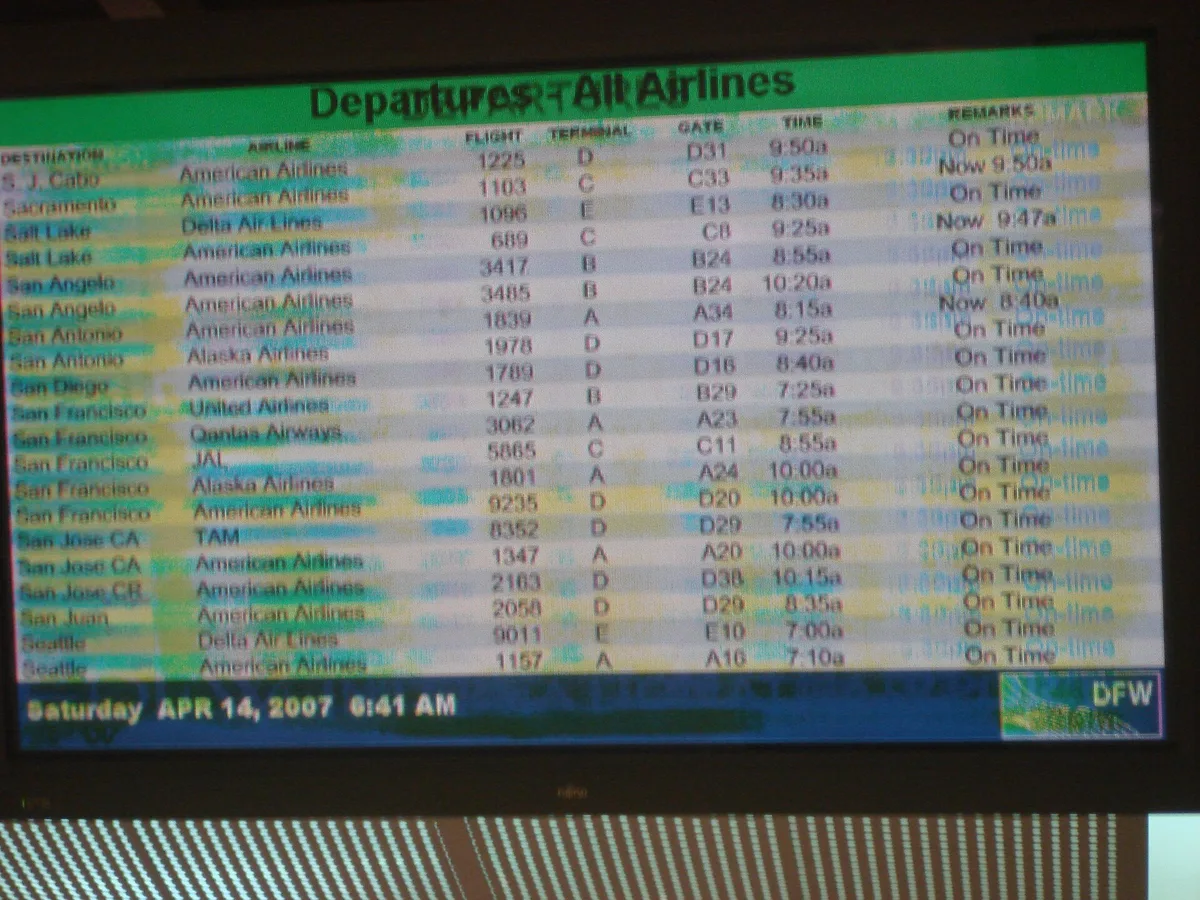
Brightness and contrast matter too. Apple says burn-in can occur in more extreme cases, such as when the same high-contrast image is shown at high brightness for prolonged periods. Brighter pixels work harder, and white text on black widens the gap between busy pixels and idle ones.
How do you prevent OLED burn-in?
Put the makers’ advice side by side and it boils down to this: keep brightness automatic or lower, let the screen switch off when idle, and don’t leave the same image up for long.
- Use auto-brightness. Apple says it can further reduce the effects of burn-in and image persistence. It is on by default on iPhone.
- Shorten the screen timeout. On iPhone, set Auto-Lock in Settings > Display & Brightness. Apple says shorter is better.
- Avoid static images at maximum brightness. If an app keeps the screen on, Apple suggests dimming it from Control Center for a while.
- Limit static content. LG warns against leaving a channel with a fixed logo, such as a news channel, or a paused video game on screen for long, and against long sessions in vivid mode or at very high brightness.
- Hide fixed elements. For an OLED TV used as a PC monitor, RTINGS suggests hiding the taskbar and using a screensaver.
Devices protect themselves too. Apple says iPhone tracks how much each pixel has been used and adjusts each pixel’s brightness. Samsung’s OLED monitors keep Pixel Shift on by default and, once switched off after four or more hours of use, run an automatic Screen Optimization routine. LG’s OLED TVs start a screen saver after about two minutes on a paused screen.
How do you test for OLED burn-in?
You need no special equipment. Burn-in shows through whatever is on screen, so a plain, single-color screen reveals it best.
- Dim the room a little and set brightness to about the middle.
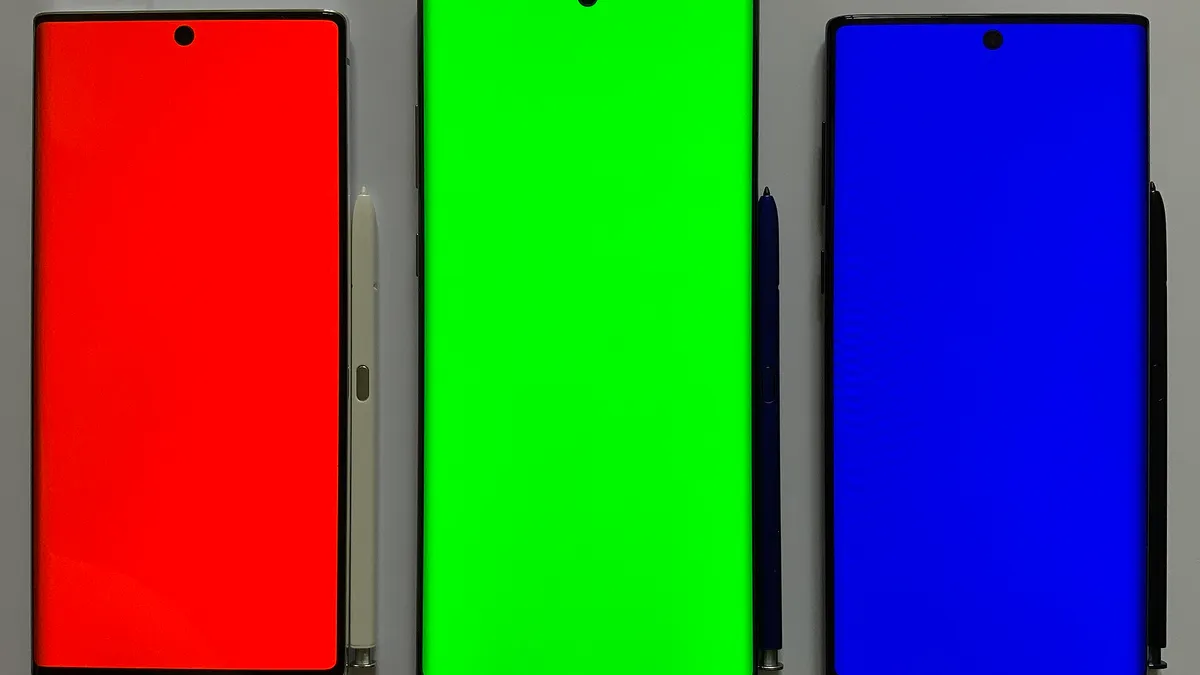
- Open a full-screen image of one shade of gray, then try white, red, green and blue.
- Look for faint shapes where the status bar, keyboard or taskbar usually sit.
RTINGS’s home check for image retention works the same way, comparing photos of a dark 15% gray screen taken before and every two minutes after a 10-minute clip of high-contrast logos. If a mark fades within minutes, it was retention; if it stays after you switch off or watch other content, suspect burn-in. A solid-color image you make yourself is enough, and skip flashing test videos if flickering light bothers you.
Can tandem OLED get burn-in, and what about the new MacBook Pro?
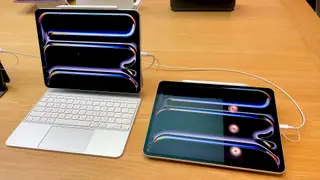
A tandem OLED stacks two light-emitting organic layers that glow together, so each works less hard at the same brightness. Samsung Display, announcing a tandem laptop panel in July 2026, said that at typical laptop brightness it lasts more than twice as long as a conventional single-layer OLED.
A longer lifespan is not immunity to burn-in. Apple’s support page for the tandem OLED iPad Pro still says burn-in can occur in extreme cases and repeats the iPhone tips.
The new MacBook Pro’s PROLED XDR display also uses tandem OLED technology, with two self-illuminating pixel layers and up to 2000 nits of peak brightness. Apple says its display engine monitors and adapts each pixel’s usage over time to preserve image quality. The press release does not mention burn-in.
The Mac’s menu bar and Dock sit in fixed places, but macOS already offers the equivalent of hiding the taskbar. Apple’s Mac User Guide explains that you can set the menu bar to hide automatically, so it shows only when you move the pointer to the top of the screen, and that you can hide the Dock in System Settings > Desktop & Dock. The MacBook Pro goes on sale on 6 November, and how its screen holds up over the years will only show with real-world use.
In short
OLED burn-in is a lasting ghost left where one image sat too long and wore those pixels out faster than the rest, while image retention fades within minutes. The makers’ advice comes down to moderate brightness, a quick screen-off and no static images left up for hours, and tandem OLED extends lifespan without making a screen burn-in proof.
More from this issue
 OLED touchscreen MacBook Pro: release date, price and what's new?
 What is tandem OLED, and how is it different from regular OLED and mini-LED?
 What is the Dynamic Island, and what does it do on iPhone and Mac?
 What is refresh rate, and can you see the difference between 60Hz and 120Hz?
 What is contrast ratio, and what does 10,000,000:1 really mean?
People also ask
Can OLED burn-in be fixed?
Temporary image retention fades if you switch the screen off for a while or watch something else, and LG says you can run the Pixel Refresher on its OLED TVs when you see it. True burn-in is worn-out pixels, so it cannot be fully reversed. If you find it on your device, check the maker's warranty and repair options.
Can tandem OLED get burn-in?
It can. Stacking two light-emitting layers lets each layer work less hard, and Samsung Display says its tandem laptop panels last more than twice as long as single-layer OLED at typical laptop brightness. But Apple's support page for the tandem-OLED iPad Pro still says burn-in can occur in extreme cases and gives the same prevention tips as for iPhone.
Which iPhone settings help prevent burn-in?
Apple recommends keeping auto-brightness on (it is on by default), choosing a short Auto-Lock time in Settings > Display & Brightness > Auto-Lock, keeping iOS up to date and not leaving static images at maximum brightness for long periods. If an app keeps the screen on, you can lower the brightness from Control Center for a while.
Sources
- Apple Support - About the Super Retina display and Super Retina XDR display on your iPhone
- Apple Support - About the Ultra Retina XDR display on your iPad Pro (M4 and M5)
- LG USA Support - LG TV - Troubleshooting Image Burn-In
- Samsung US Support - Prevent burn-in on Samsung OLED Monitor
- RTINGS - Temporary Image Retention on TVs (updated 16 Feb 2026)
- Samsung Display - Samsung Display Sets a New Brightness Standard for Premium Laptops with VESA DisplayHDR True Black 1400 Tandem OLED (20 Jul 2026)
- Apple Newsroom - Apple unveils groundbreaking MacBook Pro with PROLED XDR Display and Touch for the first time on Mac (28 Oct 2026)
- Apple Support - What's in the menu bar on Mac? (Mac User Guide)
- Apple Support - Use the Dock on Mac (Mac User Guide)